
Read your business numbers in Insights
Open Insights from the main navigation. Owners and admins with estimate access can see the estimate win/loss rate. Invoice access also shows the five financial tiles. Each tile has its own timeframe and job filter.
Are we winning the work we quote?
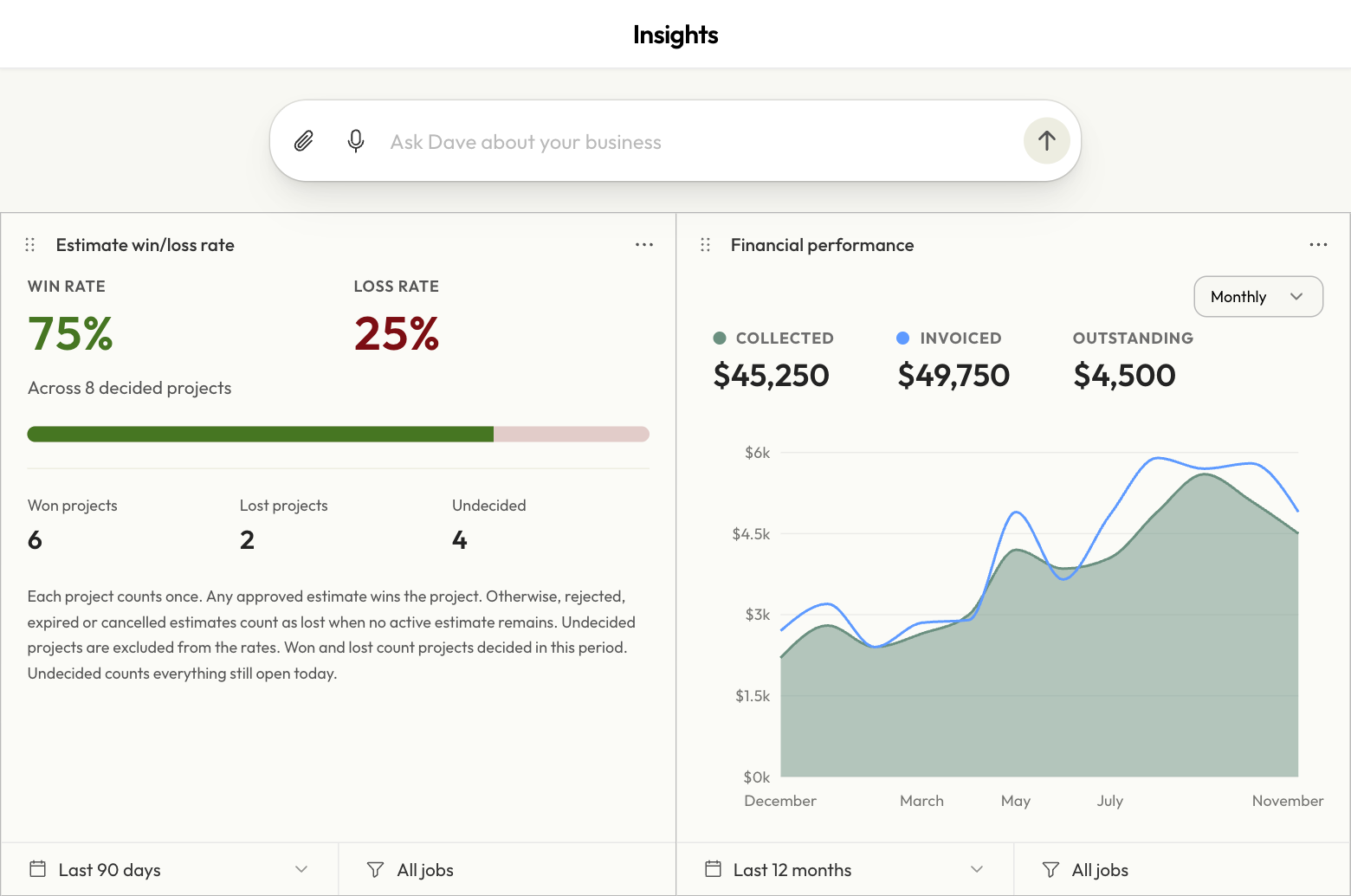
Estimate win/loss rate counts each project once. An approved estimate wins the job. A rejection, expiry, or cancellation counts as a loss when the project has no active estimate left. In the example below, six wins and two losses give a 75% win rate. The four undecided projects are still open today and stay out of that calculation.
To decide who to follow up with, find Estimates awaiting approval. In play adds the value approved during the period to the value sent during it that is still waiting. Choose See sent estimates to review individual quotes.
Who should I follow up with about payment?
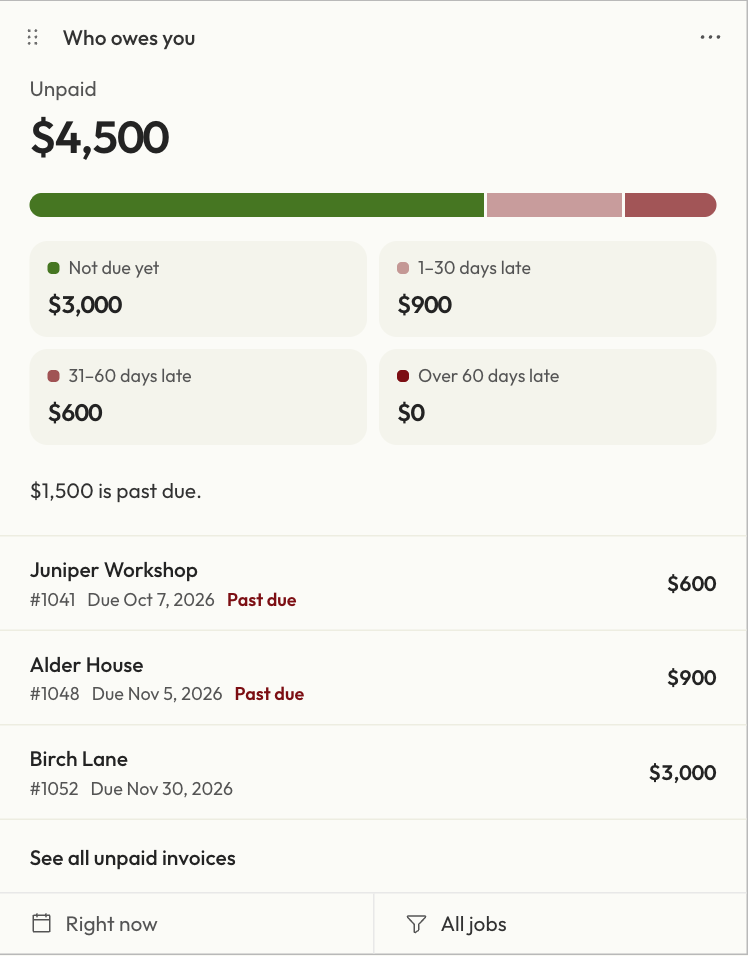
Start with Who owes you. It shows outstanding invoice balances Right now, grouped by how late they are. In this example, $4,500 is unpaid. Of that, $3,000 is still within terms, so $1,500 needs a follow-up. Select a client’s row to open the project’s invoices, or choose See all unpaid invoices.
Three other tiles help you put those balances in context.
- Financial performance shows payments collected during the period, net of completed refunds. Invoiced counts posted, non-deposit invoices dated in the period. Outstanding shows how much is still due on those invoices. A payment this month can belong to an older invoice.
- Best clients ranks up to five clients by how much they paid during the period, net of refunds. Each percentage is that client’s share of total collections.
- This period vs the one before compares collections, invoiced amounts, and projects won with the preceding period of the same length.
Narrow a tile to the jobs you care about
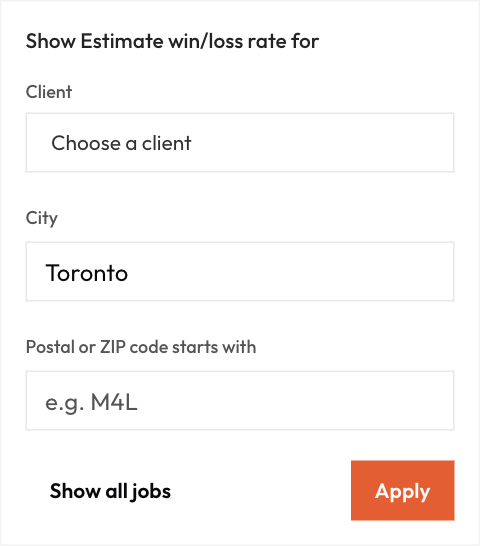
To check your win rate in Toronto, choose Last 90 days on the win/loss tile. Open All jobs, enter Toronto under City, and select Apply. You can also choose a client or enter the start of a postal or ZIP code. Location filters use the job address. To clear a filter, reopen it and choose Show all jobs.
Drag a tile by its handle or use its … menu to Move earlier or Move later. Dave saves the order, timeframes, and filters for the business.
For a question the tiles don’t answer, use Ask Dave about your business at the top. Include the location and dates in your question, such as “Which estimates are still waiting on clients in Toronto?” Use Ask Dave.
Last updated
Related articles
Still need a hand?
Tell us what you’re trying to do and where you got stuck.
Contact Dave support