
Build an invoice with AI Invoice Builder
Choose Create Invoice on the project or open an existing draft, then open AI Invoice Builder. The first message on a new invoice saves the form as a draft. Dave makes requested edits directly on that draft. You decide when to send it.
Bill from an approved estimate
- Progress invoice. “Bill 30% of the approved kitchen estimate.” On a $10,000 estimate before tax, look for $3,000 of work on the draft.
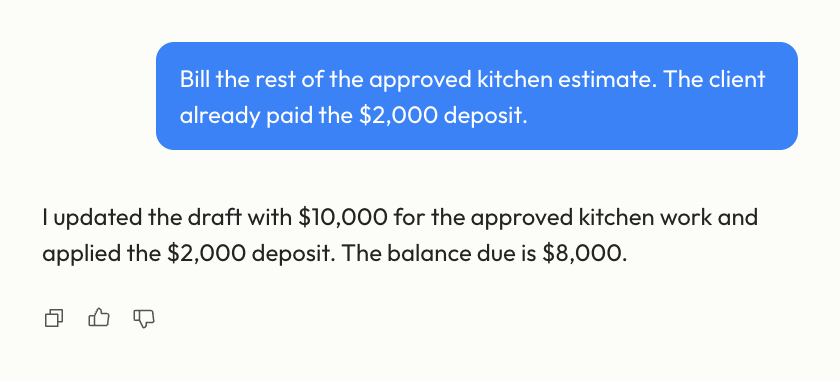
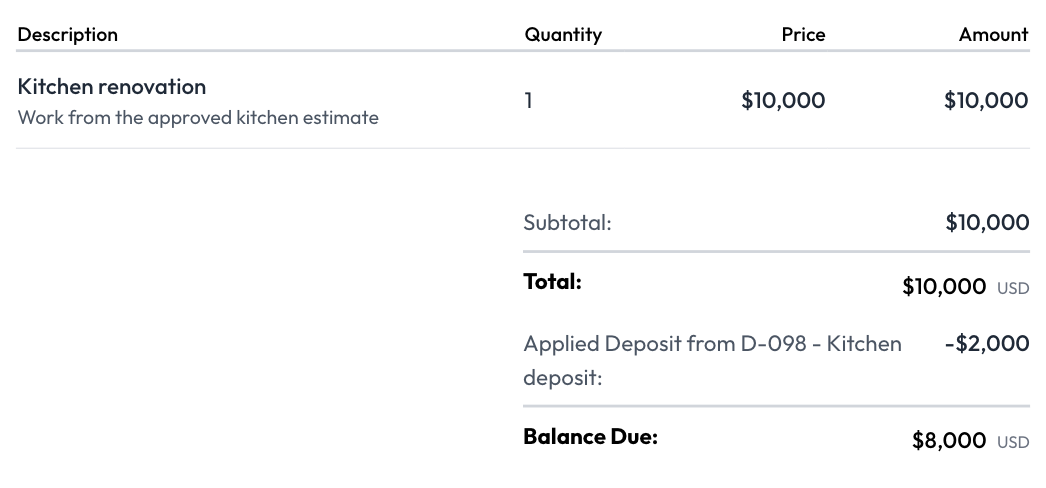
- Final invoice after a deposit. “Bill the rest of the approved kitchen estimate. The client already paid the $2,000 deposit.” If the deposit was the only amount billed on a $10,000 job with no tax, the invoice shows $10,000 of work, a $2,000 deposit applied, and $8,000 due. Check both the deposit and the balance before sending.
Bill materials and extra work
“Use the material purchases in my project notes. Give me one line per supplier, include their invoice numbers, and use the job’s material markup.” Check each supplier’s line against the receipts recorded in your notes.
For extra work, give the description and agreed price together. Try “Add $575 for installing the backsplash.” If the work or amount is unclear, Dave can ask you to fill it in.
Correct and send the draft
Name the line you want to change, such as “Change the drywall quantity to 12.” For a credit, try “Give the client $200 off for the delay.” Look for a fixed discount on the invoice.
Check the billing client, due date, tax, and balance due on the updated form. Choose Preview & Send when you’re ready to deliver it. Send an invoice.
AI credits
Each message to the builder uses 10 AI credits. How AI credits work.
Last updated
Related articles
Still need a hand?
Tell us what you’re trying to do and where you got stuck.
Contact Dave support