
Export bookkeeping data
Use Settings → Data Export to download the sales and payment records Dave holds for your business. The ZIP includes spreadsheet-friendly CSV files, available invoice PDFs, and explanations for your accountant, bookkeeping tool, or AI assistant. You do not need a QuickBooks connection to export.
Download an export
- Open Settings → Data Export. The page is titled Export Accounting Data.
- Enter Start Date and End Date, or use a preset: Last 30 days, Last 90 days, This month, This year, or All time.
- Check the dates. This month and This year end today. All time clears both fields; leaving the end blank uses today as the period end.
- Select Export and save the ZIP. Wait for the export to finish.
- Unzip it and open README.md first. It identifies the business, period, currency, time zone, totals, and meaning of each file and column.
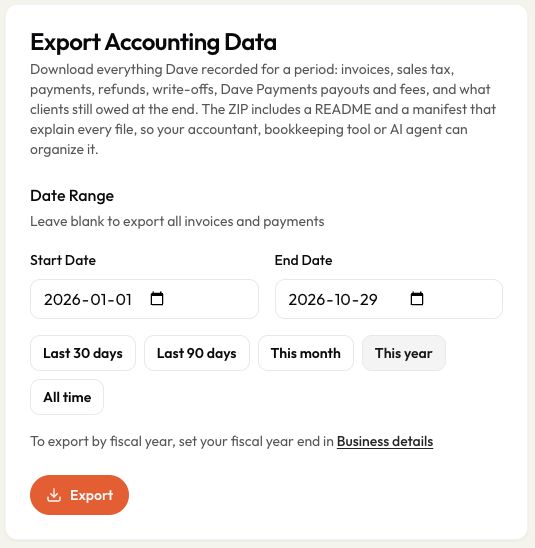
The filename includes the selected dates, such as invoices-export-2026-01-01_to_2026-10-29.zip. Exporting downloads records; it does not send invoices or change their balances.
Export a fiscal year
An admin can set the business's Fiscal year end in Settings → Business Info → Business details. Choose its month and day and save the business details. This is a reporting setting; it does not change invoice dates or your Dave subscription billing cycle.
Return to Data Export to use:
- Last fiscal year: the complete fiscal year immediately before the current one.
- This fiscal year: the start of the current fiscal year through today.
For example, with a June 30 year end, on October 29, 2026, Last fiscal year selects July 1, 2025–June 30, 2026. This fiscal year selects July 1, 2026–October 29, 2026. You can still enter custom dates. If the fiscal-year buttons are missing, follow the Business details link to set the year end.
What is in the ZIP?
-
README.md: A readable guide, period totals, sales tax by name and rate, opening and closing receivables, column definitions, and exclusions.
-
manifest.json: The same export information in a structured format for software or AI tools, including schema version, file row counts, and column descriptions.
-
invoices.csv: Invoices dated in the period, with client and project details, subtotal, discount, tax, total, current status, and amount due at the period end.
-
invoice_taxes.csv: The tax breakdown on those invoices, including each tax's name, rate, and amount.
-
payments.csv: Payments dated in the period, their invoice references, methods, payment types, and available payout references.
-
refunds.csv: Completed refunds and chargebacks dated in the period. The kind of entry distinguishes a refund from a chargeback.
-
write_offs.csv: Balances resolved during the period, including the amount and reason. These are not payments.
-
deposit_recognitions.csv: Deposits applied from a deposit invoice to the regular invoice for the work during the period. No new money moves.
-
payouts.csv: Dave Payments bank payouts for the period: status, date, gross amount and fees when supplied, and net amount.
-
accounts_receivable.csv: Invoices still owed at the period end, including older invoices, with due dates and aging groups.
-
invoices/: Available invoice PDFs. The PDF File column in invoices.csv identifies each included PDF; a blank value means no PDF was included for that invoice.
Use Invoice ID to match records for the same invoice. Payment ID links refunds and deposit applications to their original payments, and Payout ID links payments to bank payouts. These IDs are safer matching keys than a display name or an amount alone. A related record can be outside the selected period; expand the date range if you need it in the same ZIP.
How the date range works
The range includes its start and end dates. Each kind of record uses its own date: invoice date for invoices, payment date for payments, refund date for refunds, and the business-local date of a write-off. Payouts use their expected or actual bank date.
This means a payment received this year for last year's invoice can appear in payments.csv even though the invoice is outside invoices.csv for this period. Its invoice reference still identifies the bill. accounts_receivable.csv includes older invoices if they were still owed at the period end.
A status such as Paid or Void describes the invoice today. Use Amount Due At Period End, not today's status, when reviewing the exported period's outstanding balances.
Avoid counting the same money twice
Use the README totals as a starting point, and keep these distinctions when importing or reviewing the CSVs:
- Invoice totals and payments answer different questions. One shows what was billed; the other shows money received. Do not add them together as two separate sales.
- Deposits collected are new money; deposits applied are not. In payments.csv, deposit_collected is money received in advance. deposit_applied moves that credit to another invoice. The README separates these totals.
- Refunds and chargebacks are separate from payments. Their amounts are positive in the CSV; the file and kind identify the direction of money. A refund reduces cash collected without reopening its amount as debt. A chargeback can reopen the balance.
- Write-offs close unpaid balances without collecting money. Keep them separate from payments received.
- Drafts, void, and deleted invoices are excluded from totals. In invoices.csv, use Included In Totals = Yes when totaling the bills.
For example, collecting a $500 deposit and later applying that $500 to the final invoice is $500 received, not $1,000. The application is documented separately so it can be traced without counting it again.
Match Dave Payments payouts to your bank
Start with payouts.csv. Match the payout's date and Net amount to the bank statement, and check its status: an expected or pending payout is not confirmation that the bank received it.
Use Payout ID to connect the payout to payments in payments.csv. Gross and Fees, when reported, explain the difference between customer payments and the net bank deposit. A blank fee value means it was not supplied, not necessarily that the fee was zero.
Payments and payouts can fall in different periods. If a payout includes a payment outside your selected dates, expand the export range to trace it. Likewise, an invoice can be paid while its bank payout is still pending.
What this export does not include
Dave does not supply expenses, supplier bills, payroll, or bank statements in this ZIP. Add those from your other records. Estimates are also excluded because they are not invoices.
Stripe payouts and Stripe processing fees are not stored in this export; obtain those from the Stripe dashboard. Dave Payments payouts and available fees are included.
The ZIP is a data package, not a guaranteed one-click import into every accounting tool. Use the included column definitions to map fields, and check existing QuickBooks records before importing records Dave has already synced. Keep the README and manifest with the CSVs when handing them to your bookkeeper.
Historical balances and later corrections
Period-end balances are calculated using the dated records as they stand when you export. They are not a frozen snapshot of what Dave displayed on that date. A later edit or deletion of a backdated payment can change a past period's export; the CSVs do not include the payment correction audit history.
Dave also does not retain a historical void date for this calculation. An invoice voided after the period end is excluded from that period's receivables when you export again. Keep the ZIP used for a completed reconciliation so you can compare later exports and explain changes.
Last updated
Related articles
Still need a hand?
Tell us what you’re trying to do and where you got stuck.
Contact Dave support