
Resolve an unpaid invoice balance
Use Resolve remaining balance when you agree not to collect the rest of an invoice—for example, a goodwill reduction or an unpaid remainder you are writing off. Dave closes the balance with an adjustment. It does not record a payment or return money.
If the customer paid, record the payment instead. If you are returning money, use the refund flow.
The web app offers this action on an eligible partly paid invoice with a remaining balance. If the action is missing, check your invoice access and its status; do not record a payment that did not happen to make the action appear.
Resolve the balance
- Open the invoice and check its payments and remaining balance.
- Open More actions and select Resolve remaining balance.
- Review Collected, Deposit applied if shown, Writing off, and Invoice total. The action closes the full remaining balance.
- Enter a Reason. Use wording that explains the adjustment to the client, such as an agreed discount.
- Add an Internal note if your team needs more context. Internal notes are not shown in the client portal.
- Review Send receipt to client and select Resolve balance.
- Confirm that the balance is zero, the invoice is Resolved, and the adjustment appears in Payment history.
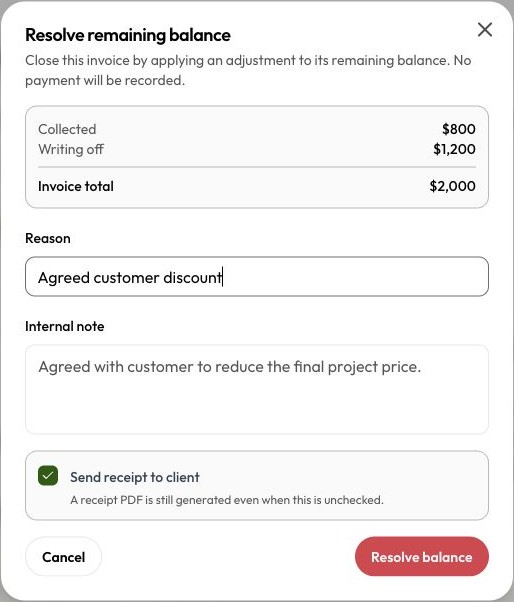
For a $2,000 invoice with $800 paid and no deposit credit, resolving the remainder writes off $1,200. The balance becomes zero; the $1,200 is not counted as money collected.
Receipts and history
The adjustment stays in Payment history with its reason. Use View receipt when the receipt is ready. If the adjustment has no receipt yet, its three-dot menu can offer Generate receipt.
After a write-off, manual payment edits and invoice changes can be restricted so they do not invalidate the closed balance. If you resolved an invoice by mistake, contact support before adding another payment or changing the bill.
QuickBooks and bookkeeping
With QuickBooks connected and sync enabled, Dave creates a credit memo and applies it to the invoice. Check the write-off's QuickBooks badge in Payment history and open it for error details or Retry Sync when offered.
Older write-offs from before automatic sync may have no badge and are not sent again automatically. Check the existing QuickBooks entry before entering anything manually.
The bookkeeping export lists the adjustment in write_offs.csv, separately from payments and refunds. It also reflects the adjustment in the period-end amount due.
Last updated
Related articles
Still need a hand?
Tell us what you’re trying to do and where you got stuck.
Contact Dave support