
Add Dave to your Home Screen
Open Dave from an icon on your phone or computer, without finding the browser tab each time. This is the Dave web app, also called a progressive web app or PWA. It uses the same account and business as Dave in your browser.
Start at the Dave app and sign in. Add the app itself, rather than the marketing website or this help page.
iPhone or iPad
- Open Dave in Safari on your device. You can also use the Share menu in Chrome on iPhone.
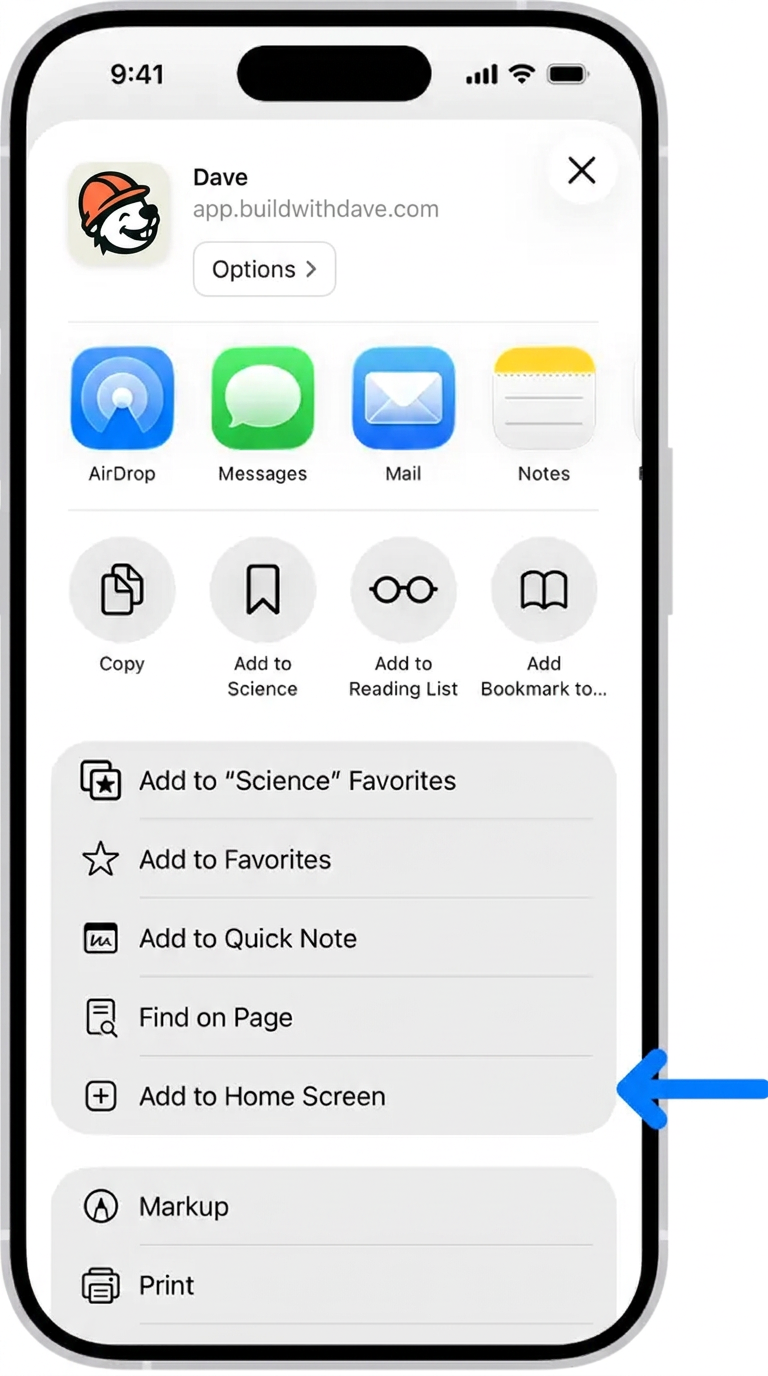
- Tap More (…) → Share, or tap Share directly if it is visible in your browser’s toolbar.
- Scroll down and choose Add to Home Screen. If it is missing, scroll to Edit Actions and add it to the list.
- Keep Open as Web App on if your device shows that option, then tap Add.
- Tap the new Dave icon on your Home Screen. Sign in if prompted.
Android
- Open Dave in Chrome and sign in.
- Open the browser’s More (⋮) menu.
- Choose Add to home screen, then Install, or choose Install app if that is the label shown.
- Confirm the installation and open Dave from the new icon.
The wording depends on your browser and device. If you opened Dave inside an email or another app, open the page in Chrome first.
Computer
In a browser that supports web-app installation, such as Chrome, open Dave and look for the Install icon near the address bar. In Chrome, you can also choose More → Cast, save, and share → Install page as app. Follow the browser’s installation prompt. You can continue using Dave in a normal browser tab if your browser does not offer installation.
What to expect
The icon is added only to the device where you install it. Repeat these steps on another device if you want an icon there too.
The web app is separate from the Dave iOS and Android apps. Adding an icon does not create another account or copy your projects. Use your usual sign-in and select the right business.
Keep an internet connection for your work. Adding Dave to your Home Screen does not mean every action works offline; check that changes and uploads have saved before closing it.
Browser help: Apple Home Screen instructions and Chrome web-app installation.
Last updated
Related articles
Still need a hand?
Tell us what you’re trying to do and where you got stuck.
Contact Dave support